Business expenses reduce your taxable income — but only if you track them. Most lawn care operators underreport expenses simply because logging them is a hassle. LawnBook™ makes capturing expenses as fast as snapping a photo or saying a sentence. This guide covers every method.
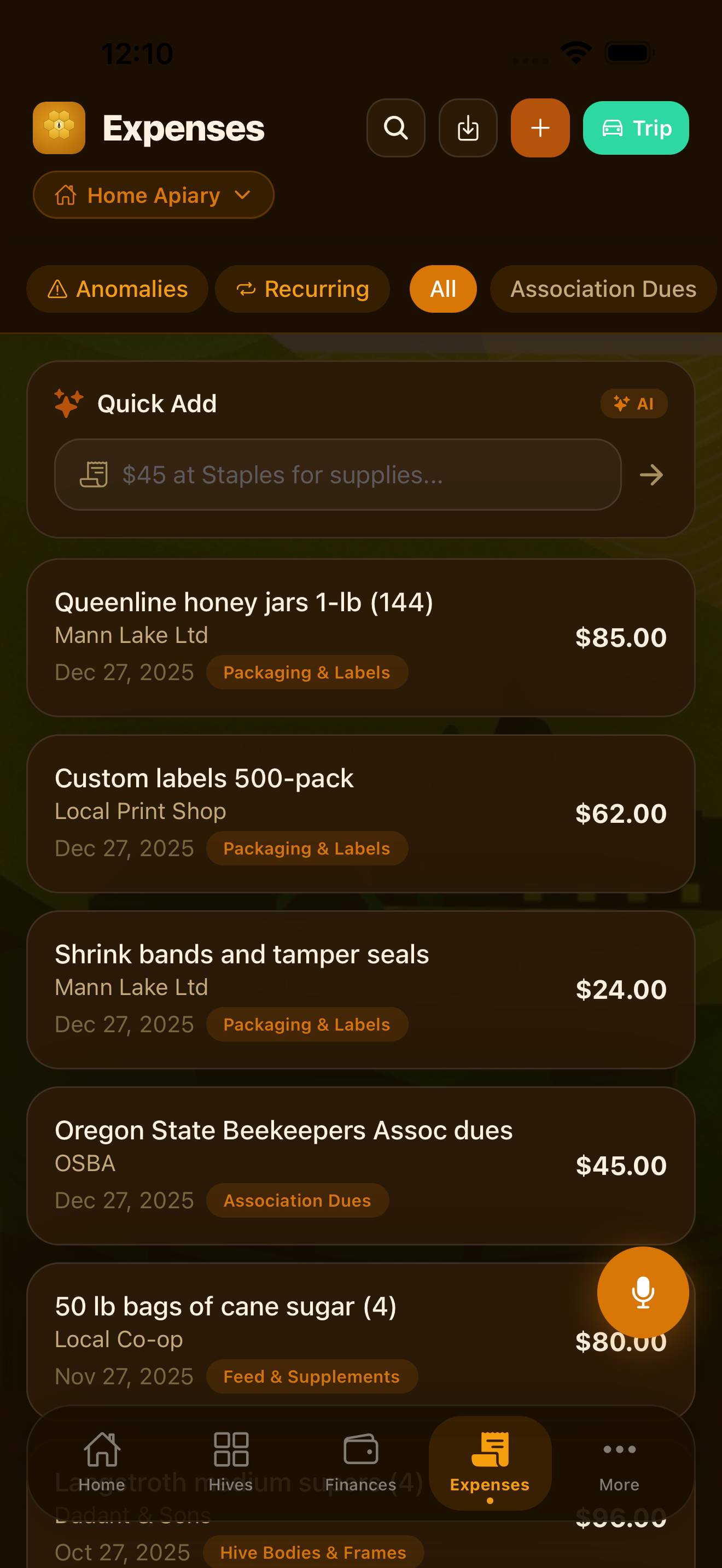
Manual Expense Entry
Tap the Expenses tab, then the + button to open a new expense entry. Fill in the vendor name, amount, date, and category. An optional notes field lets you add any context — such as which job site a supply purchase was for.
Every field except the amount has smart defaults: the date defaults to today, the vendor and category are remembered from recent entries, so repeat purchases from the same vendor take only a few seconds to log.
Tip: Log expenses the same day they happen. Trying to remember three weeks of gas receipts at month-end is how things get missed. It takes ten seconds in the moment and saves hours later.
AI Receipt Scanner
Tap Scan Receipt from the new expense screen and point your camera at any paper receipt. The on-device AI reads:
- Vendor or store name
- Total amount
- Date of purchase
- Individual line items (when legible)
- Suggested expense category
You review the extracted data before saving. If the AI misreads a field, tap it to correct. Receipt images are stored on your device so you have a digital record alongside the numbers. This works with gas station receipts, hardware store invoices, supply wholesaler printouts, and handwritten receipts.
Tip: Receipt scanning runs entirely on-device. Your financial receipts are never uploaded to any server. The AI model is built into the app and works with no internet connection.
Voice Expense Entry
Driving back from a supply run? Log expenses without stopping. Tap the microphone icon on the Expenses screen and speak naturally:
- "$47 at Home Depot for fertilizer"
- "Gas, $62.50, BP on Route 9"
- "Equipment repair, $180, Toro dealer"
LawnBook parses the amount, vendor, and category from natural speech and pre-fills the entry form. You confirm before saving. Voice entry is available in English and works offline.
Auto-Categorization to Schedule C
Every expense is mapped to a standard IRS Schedule C category. LawnBook uses all 20+ Schedule C line items, including:
- Advertising
- Car and truck expenses
- Commissions and fees
- Insurance (other than health)
- Legal and professional services
- Office expense
- Rent or lease (vehicles, machinery)
- Repairs and maintenance
- Supplies
- Taxes and licenses
- Travel and meals
- Utilities
- Other expenses
When you add an expense, LawnBook suggests the most likely category based on the vendor name and description. You can override it at any time. At tax time, your expenses are already sorted by Schedule C line — no reorganizing required.
Recurring Expenses
Some expenses happen on a predictable schedule: software subscriptions, equipment loan payments, insurance premiums. Set these up as recurring expenses and LawnBook will auto-log them for you on the right date each month or year.
- Create the expense entry as normal
- Tap Make Recurring before saving
- Choose the frequency: weekly, monthly, quarterly, or annual
- Set an end date if the expense has one (e.g., a lease that expires)
Recurring expenses appear in your expense list automatically on their scheduled date. You'll receive a notification confirming each auto-log so nothing goes unreviewed.
Anomaly Detection
LawnBook's on-device AI monitors your expense patterns and flags unusual entries. If you typically spend $60–80 per week on fuel and suddenly log a $400 fuel expense, the app will surface a gentle alert asking you to confirm the amount is correct.
This catches common mistakes like accidentally logging $1,800 instead of $180, duplicate entries for the same receipt, or a recurring expense that's running significantly higher than usual. Anomaly alerts appear as a small flag icon on the expense — tap it to dismiss or correct.
Filtering and Searching Expenses
The Expenses list supports filtering by date range, category, and vendor. Use the search bar to find any expense by keyword. Combined filters let you quickly answer questions like "how much did I spend on fuel in Q3?" or "what did I pay at Toro dealer last year?"
Expense Reports
Generate an expense summary for any date range from the Reports section of the Tax Center. Reports can be exported as PDF or CSV for sharing with a bookkeeper or accountant.